Website Construction for Visual Artists
WebsiteHelpers: Choosing the best video format for your web site
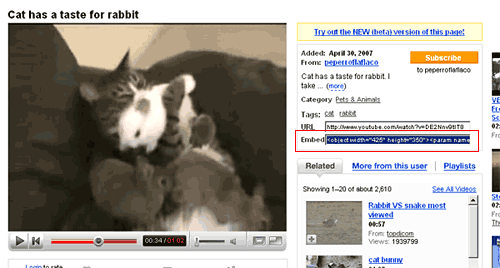
YouTube page, with script generated for embedding into websites (outlined in red):
Video window embedded on CuteOverload page:

Wikipedia: video sharing websites
Boutell.com discusses adding Flash (FLV) files to your page.
Next: Audio files Top
Adding video files to your site
Video footage will need to be compressed to a Web-friendly format: QuickTime (.mov), RealVideo (.rm, .rv), Windows Media (.wma), MPEG (.mpeg, .mp4) or Flash (FLV). Even when compressed, video files tend to be the largest files that users will download from your site, and measures should be taken to reduce the image quality (within reason) and to shrink the window size (within reason). The general public is quite accustomed to seeing their beloved YouTube videos on small format, so there's no need to go larger than what they're used to. Also, consider showing excerpts instead of maximum durations.WebsiteHelpers: Choosing the best video format for your web site
Methods for providing video:
- Text links. This is the easiest and most efficient way to give visitors access to the video file. It isn't scintillating, but visitors are able to click the link and let their browser (or default media player) handle the rest. It is recommended that you also provide the filesize, just to warn visitors with slow connections what they're in for.
Example: <a href="media/video5.mov">Video #5, 18 MB</a> - Image links. You can export an image from your video editor to use as a thumbnail, and nest that <img> tag inside of your <a href=""> </a>. You can also use the lazy method to get this thumbnail -- just take a screenshot while the video is in your media player. Macs have a great screenshot tool: APPLE+SHIFT+4 will give you crosshairs in which you can select a portion of the screen for your screenshot.
- Embedded video. This is often favored because it provides immediate (and visually obvious) access for the visitor. The drawback is that it requires extra scripting acrobatics it requires (with both <object> and <embed> tags) in order to be reliable across browser formats (blame Internet Explorer).
Oreilly: Web video (preparation and embedding)
Embedded Media HTML Generator
YouTube page, with script generated for embedding into websites (outlined in red):
Video window embedded on CuteOverload page:
Wikipedia: video sharing websites
A few more links
Free Video Encoding is another such generator.Boutell.com discusses adding Flash (FLV) files to your page.
Next: Audio files Top